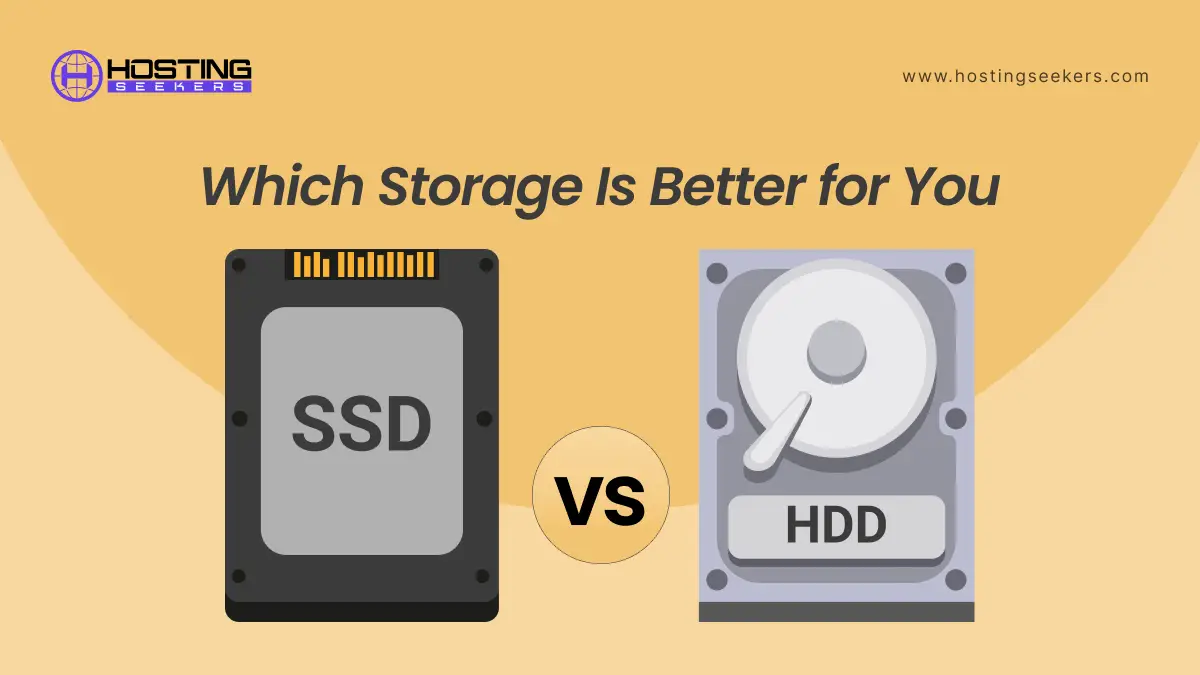
SSD vs HDD: What’s the Difference & Which One Should You Choose in 2026?
IT Updated on : December 31, 2025The storage you choose directly impacts your computer’s speed, lifespan, and cost. SSDs and HDDs are fundamentally different technologies, each with distinct advantages.
Choose an SSD for speed and performance, or an HDD for budget-friendly bulk storage. Many users benefit from combining both – an SSD for your operating system and programs, plus an HDD for file storage and backups.
This blog breaks down the 2026 storage landscape so you can make an informed decision based on your specific needs.
What Is an SSD?
A Solid State Drive (SSD) uses NAND flash memory to store data – the same technology in USB drives and smartphones. Because SSDs have no moving parts, they deliver lightning-fast performance with zero mechanical delays.
SSD types available
- SATA SSDs: Traditional 2.5-inch form factor, speeds up to 550 MB/s, excellent for older systems
- NVMe M.2 SSDs: Compact stick-like drives with speeds from 3,500 MB/s (Gen 3) to 10,000+ MB/s (Gen 5)
- Portable External SSDs: Rugged, compact, with read speeds up to 1,050 MB/s
Key characteristics of SSDs:
- No mechanical components
- Extremely low latency
- Faster boot and application load times
- Lower power consumption than HDDs
What Is an HDD?
A Hard Disk Drive (HDD) uses spinning magnetic platters and a mechanical read/write head – technology dating back 50+ years. While older, HDDs remain relevant for cost-sensitive applications requiring massive storage.
HDD types available:
- Desktop HDDs (3.5″): Generally, 7200 RPM for performance models, with sustained transfer rates reaching 260 MB/s or higher.
- Laptop HDDs (2.5″): 5400 RPM, compact, slower than desktop variants.
- Enterprise HDDs: NAS and data center drives rated for 24/7 operation, up to 36TB capacity in 2026, and high-performance models using 7200 RPM spindles.
Key characteristics of HDDs:
- Mechanical, moving parts
- Slower data access due to physical motion
- Higher storage capacities at lower cost
- More vulnerable to physical damage
SSD vs HDD: Key Differences
| Feature | SSD | HDD |
| Speed | Very fast data access due to flash memory | Slower due to spinning platters |
| Performance | Excellent for multitasking & OS tasks | Adequate for storage-heavy workloads |
| Durability | No moving parts, shock resistant | Mechanical failure risk, fragile |
| Price per GB | Higher cost per GB | Lower cost per GB> |
| Lifespan | 5 – 10 years | 3 – 5 years |
| Noise | Silent | Audible spinning/clicking |
| Best For | OS, apps, laptops, gaming | Bulk storage, backups, archives |
SSD vs HDD Performance
Speed Advantage:
SSDs outperform HDDs in nearly every metric. Here’s what translates to real-world experience:
- Boot time: SSD takes 10-15 seconds vs HDD’s 30–60 seconds, 3-5x speed advantage
- File transfer: SSDs sustain 500-550 MB/s (SATA) or 7,000-10,000+ MB/s (NVMe) vs HDD’s 185-220 MB/s
- App loading: Complex applications open instantly on SSD (~10 seconds) vs 30-40 seconds on HDD
- Multitasking: SSDs have lower latency, so opening multiple files or background processes doesn’t cause system lag
Reliability & Durability
SSDs:
- No moving parts = no mechanical wear
- MTBF (Mean Time Between Failures): 1-2 million hours typically
- TBW (Terabytes Written): 150-1,200+, depending on capacity. Consumer SSDs handle 5-10 years of normal use
- Shock resistant: Can survive drops and vibration
HDDs:
- MTBF: 300,000-1,200,000 hours (typically 1 million hours)
- Vulnerable to physical shock, drops, and vibration
- Moving parts degrade over time; typical lifespan 3-5 years
- Better data recovery options if failure occurs
SSD vs HDD for Different Use Cases
SSD vs HDD for Laptop
Verdict: SSD is essential for laptops.
Reasons:
- Speed: Boot and app loading 3-5x faster
- Battery life: SSDs use 50-80% less power, extending battery life by 30-50%
- Durability: No moving parts survive vibration, movement, and accidental drops better than HDDs
- Noise: SSDs are silent; HDDs produce audible spinning/clicking, distracting in shared spaces
- Heat: SSDs generate less heat, reducing fan noise and keeping systems cooler
SSD vs HDD for Gaming
Verdict: SSD is mandatory for modern gaming.
Performance gains:
- Load times: Game loading drops from 30–60 seconds (HDD) to 2–10 seconds (SSD)
- Smoother gameplay: SSDs eliminate “hitching” (random game freezes) caused by mechanical disk delays
- Texture pop-in: High-end graphics load instantly instead of appearing mid-game with blurry textures
- FPS improvement: Faster storage means less GPU stalling; frame rates improve noticeably
- Game size advantage: Modern AAA games exceed 100GB; NVMe SSDs load and install games 50%+ faster than HDD
- Gaming recommendation: Minimum 500GB–1TB SSD for OS + most-played games; add an external HDD for game library overflow.
SSD vs HDD for Office & Daily Use
Verdict: SSD transforms productivity; HDD is outdated for OS drives.
Office workflow benefits:
- Boot time: SSD reduces startup from 60 seconds to 15 seconds – 15 minutes/week productivity gain
- File access: Opening documents, spreadsheets, and PDFs is instant vs noticeable delays on HDD
- Multitasking: Running multiple browser tabs, video calls, and background apps without lag
- Reliability: Zero downtime from mechanical failure risk
- Recommendation: Pair a 512GB SSD (OS + programs) with an HDD for document archives and backups.
SSD vs HDD Price Comparison
| Storage Type | Capacity | Price (approx.) | Price/GB | Price/TB |
| SSD (SATA) | 1TB | $65-$80 | $0.065-$0.080 | $65-$80 |
| SSD (NVMe Gen 4) | 1TB | $99-$150 | $0.099-$0.150 | $99-$150 |
| SSD (NVMe Gen 5) | 1TB | $104-$209 | $0.104-$0.209 | $104-$209 |
| SSD (External) | 1TB–2TB | $150-$210 | $0.150-$0.210 | $150-$210 |
| HDD (Desktop) | 4TB+ | $92-$114 | $0.023-$0.029 | $23-$29 |
Key insight: HDDs remain 3 to 10x cheaper per GB for bulk storage, but SSDs offer 100x better performance.
Value for Money
- SSDs deliver better performance per dollar for OS and applications
- HDDs provide better value for long-term bulk storage
Budget Recommendations
- Minimal budget ($65-$100): 500GB-1TB SATA or Gen 4 NVMe SSD for OS and essential programs
- Moderate budget ($200-$300): 1TB NVMe SSD + 4TB external HDD for balanced setup
- Content creators ($400+): 2TB NVMe SSD + 8TB+ HDD for working files + archives
Pros and Cons of SSD
Pros
- Extremely fast read/write speeds
- Silent operation
- Lower power consumption
- Higher durability
Cons
- Higher price per GB
- Limited maximum capacity compared to HDDs
Pros and Cons of HDD
Pros
- Lower cost per GB
- High storage capacity
- Ideal for backups and media storage
Cons
- Slower performance
- Mechanical failure risk
- Noisy operation
Should You Upgrade from HDD to SSD?
Upgrade if you experience:
- Boot times exceeding 30 seconds
- Application lag or freezing during multitasking
- Slow game loading (>30 seconds per level)
- The laptop battery is draining quickly
- Audible disk noise is disrupting focus
- System age exceeding 5 years (HDD nearing end of life)
Skip upgrade if:
- You need 10TB+ capacity and have a tight budget, so use HDD for now
- Your HDD still boots in <20 seconds (unlikely, but possible)
- Your system is already SSD-based
Upgrade Path:
- Buy an SSD (512GB–1TB) for OS and programs
- Clone your current HDD to SSD using free software (Macrium Reflect, EaseUS)
- Replace HDD with SSD; repurpose old HDD as an external backup drive
SSD or HDD – Which One Is Better?
- SSD is better for performance, speed, durability, and modern computing needs.
- HDD is better for affordable, high-capacity storage and backups. In 2026, SSD should be your primary drive, while HDD works best as secondary storage.
Conclusion
In the SSD vs HDD debate, the right choice in 2026 depends on what you value most: speed or storage capacity. SSDs deliver faster boot times, quicker application loading, better durability, and lower power consumption, making them the preferred option for operating systems, laptops, gaming, and everyday productivity. HDDs, while slower, remain relevant due to their lower cost per gigabyte and suitability for backups, archives, and large data storage.
Final takeaway: Use an SSD as your primary drive for performance and responsiveness, and an HDD as secondary storage for cost-effective capacity. This combination offers the best balance of speed, reliability, and value in 2026.
Frequently Asked Questions
Q1. Is SSD better than HDD?
Ans. Yes, for primary storage. SSDs are faster, more durable, and energy efficient. However, HDDs are still superior for bulk storage due to cost and capacity. An SSD is essential for the OS and programs, while an HDD complements as secondary storage.
Q2. Can SSDs last longer than HDDs?
Ans. Yes. SSDs typically last 5 to 10 years vs HDDs’ 3 to 5 years. SSDs have no moving parts, eliminating mechanical wear.
Q3. Is HDD obsolete?
Ans. No. HDDs are still widely used for backups, archives, and large data storage.
Q4. Does SSD increase laptop speed?
Ans. Yes, SSDs significantly improve boot time, app loading, and overall responsiveness.
Q5. Is an NVMe SSD worth it over a SATA SSD?
Ans. Yes, NVMe SSDs are worth it if you need high performance. NVMe SSDs use the PCIe interface, which delivers 3-6× faster speeds than SATA SSDs.
Q6. Can I use SSD and HDD together?
Ans. Yes, using an SSD and HDD together is highly recommended.
Best practice setup:
- SSD (NVMe or SATA): Operating system, apps, and games
- HDD: Large files, backups, photos, videos, and archives
Q7. Is NVMe M.2 SSD better than SATA SSD?
Ans. NVMe M.2 SSD is the fastest consumer storage option and clearly superior to SATA SSD – if your system supports it.
Key differences:
- Speed: NVMe M.2 can reach 3,500-7,000 MB/s, while SATA SSD maxes out at ~550 MB/s
- Latency: NVMe has much lower latency
- Efficiency: NVMe handles multiple tasks better

manvinder Singh
https://www.hostingseekers.com
Manvinder Singh is the Founder and CEO of HostingSeekers, an award-winning go-to-directory for all things hosting. Our team conducts extensive research to filter the top solution providers, enabling visitors to effortlessly pick the one that perfectly suits their needs. We are one of the fastest growing web directories, with 500+ global companies currently listed on our platform.