
Managing servers and desktops remotely has become essential in modern IT environments. Whether you are a system administrator, developer, or business owner, accessing Linux machines remotely improves flexibility, productivity, and operational efficiency.
While Linux is traditionally accessed via the command line, many users prefer a graphical interface. This is where Remote Desktop Protocol (RDP) comes in. Using Linux for RDP allows you to interact with a remote system as if you were sitting right in front of it.
In this blog, you will learn how to set up and use Linux for RDP step-by-step, along with the best tools, security practices, and troubleshooting tips.
Why Use Linux for RDP?
Using Linux for RDP allows you to access a full graphical desktop remotely, making it easier to manage servers, run applications, and perform tasks that are difficult via the command line alone. RDP is cost-effective and secure. Since most Linux distributions are open source, there are no licensing costs, and with proper configuration, such as firewalls and encrypted connections, it can provide a highly secure remote working environment.
It combines the flexibility of remote access with the stability and performance of Linux, especially when using lightweight desktop environments that ensure smooth operation even on low-resource systems. Also, Linux for RDP supports cross-platform access, allowing you to connect from Windows, macOS, or mobile devices with ease.
What does it mean to connect Linux remotely to a Desktop?
Connecting to a Linux system remotely means accessing its environment from another device over a network.
There are two main approaches:
- Command Line Access (CUI) – Lightweight, fast, and secure
- Graphical Access (GUI) – Full desktop experience with visuals
Using Linux for RDP refers specifically to GUI-based remote access, enabling users to operate Linux desktops remotely.
What is RDP?
Remote Desktop Protocol (RDP) is a Microsoft‑developed protocol that allows you to view and control a remote desktop over a network. It sends keystrokes, mouse movements, and display updates between client and server, giving you a full desktop experience rather than just a terminal.
Key features include:
- Full desktop access remotely
- File transfer capabilities
- Clipboard sharing
- Multi-session support
Although originally designed for Windows, RDP is widely supported on Linux through open-source tools.
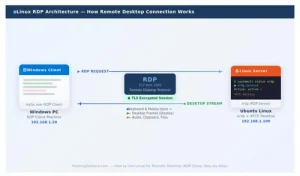
Methods to Access Linux Remotely
There are two primary ways to access a Linux machine remotely, depending on your needs and the nature of the task:
| Method | Interface | Common Protocol/Tool | Best Use Case |
| CUI (Character User Interface) | Terminal / Command Line | SSH (OpenSSH) | Server management, scripting, and file operations |
| GUI (Graphical User Interface) | Full Desktop Environment | RDP (xrdp), VNC, NX | Desktop apps, visual tasks, developer environments |
How to Access a Remote Linux Machine Through CUI?
SSH is the standard method for command-line remote access on Linux. OpenSSH is included in virtually all major Linux distributions. To connect via SSH, the OpenSSH server must be installed and running on the remote machine.
Install OpenSSH server (Ubuntu/Debian):
sudo apt update && sudo apt install openssh-server -y
Connect from any client:
ssh username@remote_ip_address
SSH encrypts all traffic and supports key-based authentication, making it the most secure method for CUI access. However, it does not provide a graphical desktop.
How to Use Linux for RDP with GUI Access
For full desktop access, xrdp is the most practical and widely adopted open-source implementation of the RDP protocol for Linux. It allows standard RDP clients (including Windows’ built-in Remote Desktop Connection) to connect to a Linux desktop environment. Other GUI options include VNC (Virtual Network Computing) and NX Protocol (NoMachine).
How to Set Up Linux for RDP (Step-by-Step Guide)
This example uses Ubuntu, one of the most widely used Linux distributions.
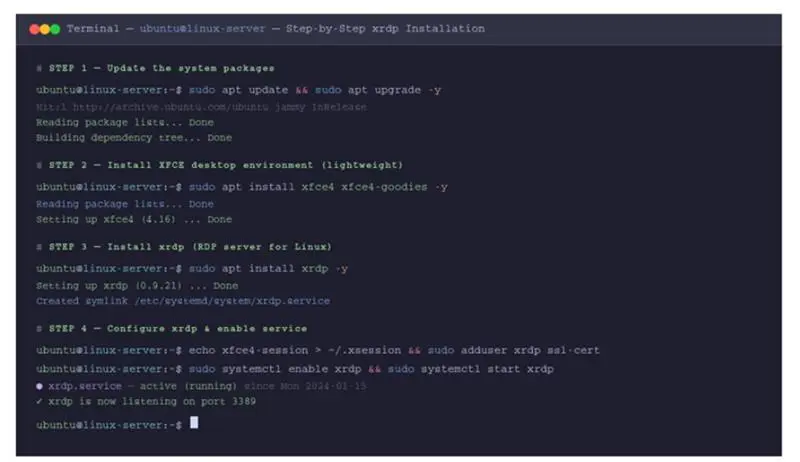
Step 1: Update System
sudo apt update && sudo apt upgrade –y
Step 2: Install Desktop Environment (if not installed)
sudo apt install xfce4 xfce4-goodies -y
Step 3: Install XRDP
sudo apt install xrdp -y
Step 4: Start and Enable XRDP
sudo systemctl enable xrdp
sudo systemctl start xrdp
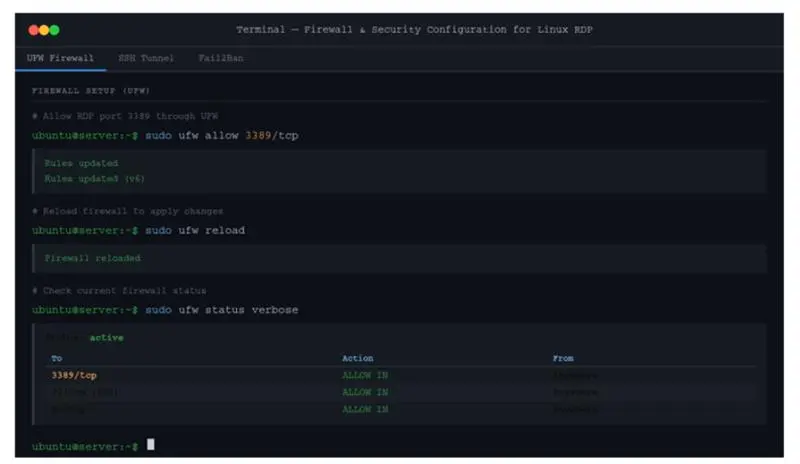
Step 5: Configure Firewall
sudo ufw allow 3389
Step 6: Set Default Desktop Environment
echo xfce4-session > ~/.xsession
Step 7: Restart XRDP
sudo systemctl restart xrdp
Your Linux system is now ready for RDP connections.
Requirements Before Setting Up RDP on Linux
Before configuring Linux for RDP, ensure:
- A Linux machine (Ubuntu 20.04 / 22.04 / Debian / CentOS / RHEL recommended)
- A desktop environment installed (XFCE, GNOME, KDE Plasma, or MATE)
- Root or sudo access on the Linux machine
- Network connectivity between the client and the server
- Port 3389 open on the firewall (or an alternate port for security)
- An RDP client on the connecting device (Windows built-in, Remmina for Linux, Microsoft Remote Desktop for macOS)
Best RDP Clients for Linux Remote Access
Here are some popular RDP clients:
| Client | Interface | Best For | Key Protocols |
| Remmina | GUI (Tabbed) | All-in-one management | RDP, VNC, SSH, SPICE |
| FreeRDP | Command-Line | Performance & Scripts | RDP |
| KRDC | GUI | KDE users | RDP, VNC |
| Vinagre | GUI (Simple) | Basic GNOME use | RDP, VNC, SSH |
How to Connect Linux RDP from Windows?
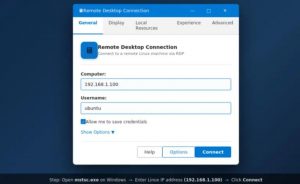
- Press Win + R, type mstsc, and press Enter to open Remote Desktop Connection.
- In the Computer field, enter the IP address of the Linux machine (e.g., 192.168.1.100).
- Click Connect.
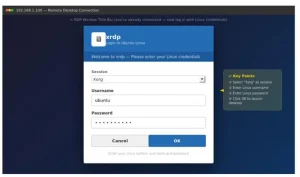
- At the Xrdp login screen, enter your Linux username and password.
- Select the session type (e.g., Xorg) and click OK.
- You will now see the Linux XFCE desktop inside the Windows RDP window
How to Secure Linux Remote Desktop Access?
Leaving port 3389 open without additional security measures exposes your system to brute-force attacks and exploitation attempts. Follow these steps to harden your RDP setup:
1. Change the Default RDP Port: Edit /etc/xrdp/xrdp.ini and change port=3389 to a custom high-numbered port. Update the firewall rule accordingly.
2. Use SSH Tunnelling: Forward RDP traffic over an encrypted SSH tunnel: ssh -L 3389:localhost:3389 user@remote_ip. Then connect via RDP to localhost.
3. Enable TLS/SSL on xrdp: xrdp supports TLS by default since version 0.9. Verify that the security_layer setting in xrdp.ini is set to TLS.
4. Restrict Access by IP: Use UFW or iptables to allow RDP connections only from known IP addresses.
5. Implement Fail2Ban: Install Fail2Ban to block IP addresses after repeated failed login attempts automatically.
6. Use Strong Passwords and MFA: Enforce complex passwords for all user accounts. Where possible, implement multi-factor authentication using PAM modules.
7. Disable Root Login: Ensure AllowRootLogin=false is set in /etc/xrdp/sesman.ini to prevent attackers from trying to brute-force the most powerful account on your system.
Common Issues and Troubleshooting
1. Black Screen Issue
- Fix: Restart XRDP
- sudo systemctl restart xrdp
2. Connection Refused
- Check firewall settings
- Ensure XRDP is running
3. Slow Performance
- Use a lightweight desktop (XFCE)
- Reduce resolution
4. Login Failure
- Verify credentials
- Check user permissions
Best Practices for Linux RDP Performance Optimization
To improve performance:
- Use a lightweight desktop environment such as XFCE or LXDE instead of GNOME or KDE for noticeably better performance over remote connections.
- Set the RDP colour depth to 16-bit in your client settings. 32-bit colour requires significantly more bandwidth.
- Disable desktop animations, transparency, and compositing effects on the remote Linux desktop.
- Enable RDP compression in the client if available. For example, in Windows MSTSC, navigate to the Experience tab and select the appropriate connection speed.
- Use a wired Ethernet connection or 5 GHz Wi-Fi where possible to minimise latency.
- Close unnecessary applications on the remote machine to free up CPU and RAM.
- If using xrdp, ensure the xrdp and xrdp-sesman services are both running and up to date.
When Should You Use Linux for RDP?
Linux remote desktop via RDP is particularly useful in the following scenarios:
- Managing a Linux VPS or dedicated server that runs a GUI-based application.
- Accessing a Linux workstation or development machine from home or while travelling.
- Providing IT support or remote assistance to Linux users who need a visual interface.
- Running GUI applications on a powerful remote Linux server that the local device cannot handle.
- Accessing a Linux machine on a private network from outside via a VPN or SSH tunnel.
- Shared lab environments where multiple users need simultaneous desktop access.
RDP vs SSH: Which One is Better?
SSH is the preferred method for server administration tasks that can be accomplished through a terminal. However, RDP becomes the better choice when:
| Requirement | SSH | RDP (xrdp) |
| Full graphical desktop access | No | Yes |
| Running GUI applications remotely | No (without X11 forwarding) | Yes |
| File management with a graphical file browser | No | Yes |
| Lower bandwidth consumption | Yes (text only) | No |
| Simplest setup for advanced users | Yes | Moderate |
| Windows client compatibility | Requires PuTTY/OpenSSH | Native (mstsc.exe) |
Alternative Linux Remote Desktop Solutions
While RDP via xrdp is the most Windows-compatible approach, several alternatives are worth knowing:
1. VNC (Virtual Network Computing): An older but widely supported protocol. Tools such as TigerVNC and TightVNC are popular. VNC does not encrypt traffic natively, so it should always be tunnelled through SSH.
2. NoMachine (NX Protocol): A commercial-grade remote desktop tool with free personal use licensing. It offers excellent performance and supports Linux, Windows, and macOS.
3. Apache Guacamole: A clientless remote desktop gateway that uses HTML5. It allows browser-based access to RDP, VNC, and SSH sessions without installing any client software.
4. SPICE: Primarily used in virtualised environments (KVM/QEMU), SPICE offers low-latency access with USB redirection and is a strong choice for virtual machine management.
Conclusion
Setting up Linux for RDP is a simple process when you follow the right steps. By installing xrdp, configuring a lightweight desktop environment like XFCE, securing the connection with TLS and SSH tunnelling, and using a compatible RDP client, you can achieve reliable, high-performance remote desktop access to any Linux machine.
Whether you are a system administrator managing remote servers, a developer accessing your workstation from another location, or an IT professional supporting remote Linux users, the information mentioned in this blog provides you with the tools and knowledge to do it confidently and securely.
For the best results, pair your Linux RDP setup with a reliable Linux hosting plan that offers low latency, dedicated resources, and full root access, so your remote desktop sessions go smoothly.
Frequently Asked Questions
Q1. Can I use RDP on Linux without a GUI?
Ans. No, RDP requires a graphical environment. Without a GUI, SSH is the preferred method.
Q2. What is XRDP in Linux?
Ans. XRDP is an open-source implementation of Microsoft’s RDP server that allows Linux systems to accept remote desktop connections.
Q3. Is RDP secure for Linux servers?
Ans. Yes, if configured properly with:
- Encryption
- Firewalls
- VPN access
Q4. Which is better: RDP or VNC?
Ans.
- RDP: Better performance and efficiency
- VNC: More flexible but slower
Q5. How to improve RDP performance on Linux?
Ans.
- Use XFCE or LXDE
- Lower resolution
- Optimize network
- Enable compression
Q6. Which port is used for Linux RDP?
Ans. By default, Linux RDP (using XRDP) uses port 3389. This is the standard port assigned to the Remote Desktop Protocol.
If needed, you can change the default port by editing the XRDP configuration file (/etc/xrdp/xrdp.ini) and updating your firewall rules accordingly. Changing the port is often recommended for improved security.
Q7. Can I access Linux RDP from a mobile device?
Ans. Yes, you can access Linux RDP from a mobile device using RDP client apps available on both Android and iOS.
Popular options include:
- Microsoft Remote Desktop
- RD Client
- Remote Desktop Manager
To connect:
- Install an RDP client app
- Enter your Linux server IP address
- Provide your username and password
Once connected, you can control your Linux desktop directly from your smartphone or tablet.
Q8. Why does XRDP show a black screen?
Ans. The XRDP black screen issue is a common problem and usually occurs due to misconfiguration or session conflicts.
Common causes and fixes:
- Missing desktop environment: Install a lightweight GUI like XFCE
- Incorrect session configuration: Ensure ~/.xsession is properly set (e.g., xfce4-session)
- XRDP service issues: Restart the service using sudo systemctl restart xrdp
- Permission issues: Check user permissions and ownership of configuration files
- Multiple sessions conflict: Log out of existing sessions before reconnecting
Fixing these typically resolves the black screen problem.
