
GitHub Support: How to Contact GitHub Support, Submit Tickets & Get Help
IT Updated on : September 16, 2026If you have ever gotten stuck on GitHub- a locked account, a billing question, a Copilot glitch, or a full-blown outage during a production deploy you can contact GitHub support via tickets, documentation, and a massive community forum. These support channels help you quickly resolve account, billing, and technical issues at ease.
This guide explains every official GitHub support channel for individuals, teams, enterprises, and Copilot users, so you know exactly where to go before you get stuck in a loop of unhelpful pages.
Quick Answer: How to Contact GitHub Support?
To get help, sign in and submit a ticket through the GitHub Support Portal. Ticket-based support is available to all paid plans, Copilot Business and Enterprise users, and Free users reporting account, security, or abuse-related issues. For general product questions, GitHub recommends using GitHub Community Discussions.
- 🎫 Ticket-Based Support: Available through the GitHub Support Portal for paid plans, Copilot Business/Enterprise, and Free users with account, security, or abuse issues.
- 💬 Community Help: Use GitHub Community Discussions for free peer-to-peer support, troubleshooting, and feature discussions.
- 🤖 AI Assistance: Get instant answers with Copilot in GitHub Support before submitting a support ticket.
- 📊 Outage Status: Check the GitHub Status page to see if your issue is caused by an ongoing service incident.
- 📞 Phone Support: Available only as a callback service for GitHub Premium Support (Enterprise) customers.
GitHub Support Options: Which One Should You Use?
GitHub offers several official ways to receive help, although the availability of each option depends on the nature of your issue and your GitHub plan.
| Support Channel | Who Can Use It | Best For |
|---|---|---|
| GitHub Community Discussions | Everyone (All Plans) | General questions, peer troubleshooting, feature discussions, and community support. |
| Copilot in GitHub Support (AI Assistant) | Anyone visiting the GitHub Support Portal | Instant AI-powered answers before submitting a support ticket. |
| GitHub Support Portal (Support Ticket) | Paid plans, Copilot Business & Enterprise users, and Free users with account, security, or abuse issues | Account recovery, billing, bugs, repository access, authentication, and technical support. |
| GitHub Status Page | Everyone | Checking live service status, outages, maintenance, and ongoing incidents. |
| Report Abuse / Content Reporting Tools | Everyone | Reporting spam, phishing, abuse, Terms of Service violations, or inappropriate content. |
| GitHub Premium Support | GitHub Enterprise customers (Paid Add-on) | 24/7 SLA-backed technical support, phone callbacks, and incident management. |
| GitHub Sales & Expert Services | Prospective and existing Enterprise customers | Pricing, licensing, renewals, onboarding, enterprise consulting, and technical training. |
GitHub doesn’t publish a general customer service phone number or email address for the public. All account-specific help flows through the GitHub Support portal.
1. GitHub Community Discussions (Free, for Everyone)
For most regular questions, “why isn’t my GitHub Pages site building,” or “how do I configure branch protection,” GitHub guides the users toward its public community forum. This is the first stop for anyone on the free plan as they don’t have direct access to a support ticket for general product questions.
- Where: github.com/orgs/community/discussions
- What it’s for: Peer-to-peer troubleshooting, product questions, and sharing feedback or feature requests with GitHub’s product team
- Who answers: Other GitHub users, community moderators, and GitHub staff who monitor the boards
GitHub asks users to engage in Community Discussions for most issues, reserving private support tickets for account, security, or abuse matters.
2. Copilot in GitHub Support (AI-Powered First Line of Help)
GitHub now utilizes Copilot, an AI assistant integrated into the support portal, to address common product and troubleshooting queries instantly before a ticket is opened.
- How it works: You describe your issue on the Support portal; Copilot in GitHub Support attempts to answer it using GitHub’s documentation and known issues
- If it can’t help: You can proceed straight into submitting a full support ticket, and any context you gave the assistant carries over
- Good for: Questions about how a feature works, common error messages, and configuration issues that don’t require an actual GitHub staff member digging into your account
This step is optional but recommended, since it’s often the fastest path to an answer, especially outside of support’s operating hours.
3. The GitHub Support Portal (Ticket-Based Support)
The ticketing system is GitHub’s core support channel, and access depends entirely on your plan:
| Your Plan | Can You Open a General Support Ticket? |
|---|---|
| GitHub Free | ❌ No. Only for account recovery, security, and abuse-related issues. |
| GitHub Pro | ✅ Yes. General technical, billing, and account support is available. |
| GitHub Team | ✅ Yes. Includes access to standard GitHub Support. |
| GitHub Enterprise Cloud | ✅ Yes. Also eligible for optional GitHub Premium Support with enhanced SLAs. |
| GitHub Enterprise Server | ✅ Yes. Can also purchase GitHub Premium Support for advanced assistance. |
| Copilot Business / Copilot Enterprise | ✅ Yes. Users can contact GitHub Support directly for Copilot-related issues. |
How to open a ticket? Quick View
- Go to the GitHub Support portal
- Sign in with your GitHub account (or your enterprise’s .ghe.com account if your organization uses data residency)
- Choose the email address you want GitHub to use for the conversation
- Write a clear, descriptive subject line
- In the “How can we help” field, describe the issue in detail. GitHub’s own guidance recommends including full URLs, repository names, usernames, exact error message text, screenshots (with the browser URL bar visible), and steps to reproduce the problem
You can track every reply and update your ticket directly from the Support portal afterward. GitHub Support communicates only in writing for security-related tickets.
What GitHub Support Can and Can’t Help With
| ✅ GitHub Support Can Help With | ❌ GitHub Support Can’t Help With |
|---|---|
| Account access, billing, payment, and security issues | Third-party integrations (e.g., Jira, Jenkins) |
| Repository and organization troubleshooting | Azure DevOps issues |
| Product bugs and unexpected behavior | Creating custom scripts or new CodeQL queries |
| Reporting abuse, spam, phishing, or Terms of Service violations | External identity provider (SAML) setup and configuration |
| GitHub Copilot Business and Enterprise account issues | Open-source project-specific support or project maintenance |
| Guidance to official usage-reporting documentation | Copilot usage or consumption audits |
| General troubleshooting and documentation guidance | Evaluating the quality or correctness of Copilot code suggestions |
| Assistance with supported GitHub platform features | Interpreting metered billing usage beyond available documentation |
| Support for officially supported GitHub services | Troubleshooting public, private, or technical preview features that are not fully supported |
If GitHub Enterprise Server customers are running a version that’s no longer supported, GitHub asks them to upgrade before opening a ticket. For anything genuinely out of scope deep consulting, custom training, or architecture guidance, GitHub points customers to its paid Expert Services offering instead.
4. GitHub Status Page (For Outages and Incidents)
GitHub advises users to check its live status page before filing a ticket for issues, as many problems may be related to platform-wide incidents instead of individual accounts.
- Status page: githubstatus.com
- Covers: Git operations, the website, Actions, Packages, Pages, API requests, and even Copilot model availability
- Extras: You can subscribe to incident alerts via email, SMS, or webhook, and there’s a public Status API for programmatic monitoring.
5. Reporting Abuse, Spam, or Security Issues
GitHub differentiates between product-related issues and policy violations, addressing the latter with specific in-product reporting tools instead of a general inbox.
You can report a violation directly from wherever it appears:
- A user: Visit their profile → Block or report → Report abuse
- An organization: Visit the org page → sidebar → Report abuse
- A repository: Repository page → About section → Report repository
- An issue, pull request, or comment: Click the “…” menu on the item → Report content
- A GitHub App: App’s page → Developer links → Report abuse
GitHub provides a contact form for reaching its Trust & Safety team. If no in-product reporting link is available, users should use the Support portal. Security issues, such as account compromise or credential exposure, are managed through written support tickets to ensure documentation of each step.
6. GitHub Enterprise & Premium Support
GitHub Premium Support is a paid add-on for GitHub Enterprise Cloud and Enterprise Server customers, providing enhanced support for production issues beyond standard tiers.
Premium Support includes:
- Written support in English, 24/7, through the Support portal
- Phone support via callback request, 24/7, when needed to resolve a ticket
- A Service Level Agreement (SLA) with guaranteed initial response times
- Dedicated escalation engineering access, plus an incident coordinator for major issues
- Access to premium support content and proactive health checks
- On the top-tier Premium Plus plan: upgrade planning assistance and dedicated technical advisory hours
7. GitHub Copilot Support Specifics
Copilot support runs through the same Support portal as everything else, but with a few extra rules worth knowing if you are on Copilot Business or Copilot Enterprise:
- Business and Enterprise Copilot customers can contact GitHub Support directly, the same as any paid plan
- GitHub Support will not evaluate whether a specific Copilot suggestion was “correct”, you retain full responsibility for any code you accept
- GitHub Support will not audit or explain why your Copilot usage/consumption looks a certain way beyond pointing you to existing usage-reporting docs
- Most Copilot issues (completions not appearing, Chat not responding) trace back to network, firewall, or proxy configuration; GitHub recommends checking its Copilot troubleshooting guide before filing a ticket
- Feedback on Copilot preview features should go through Community Discussions, not a support ticket
8. Sales, Licensing, and Training
For anything commercial, pricing, renewals, quotes, or onboarding a new enterprise account, GitHub Support isn’t the right channel. That goes to:
- GitHub Sales – pricing, licensing, renewals, payments
- GitHub Training – structured or custom training (included automatically for Premium Plus/Mission Critical Services customers)
- GitHub Expert Services – paid consulting, workshops, and architecture guidance for anything outside standard support’s scope
How to Create a GitHub Support Ticket?
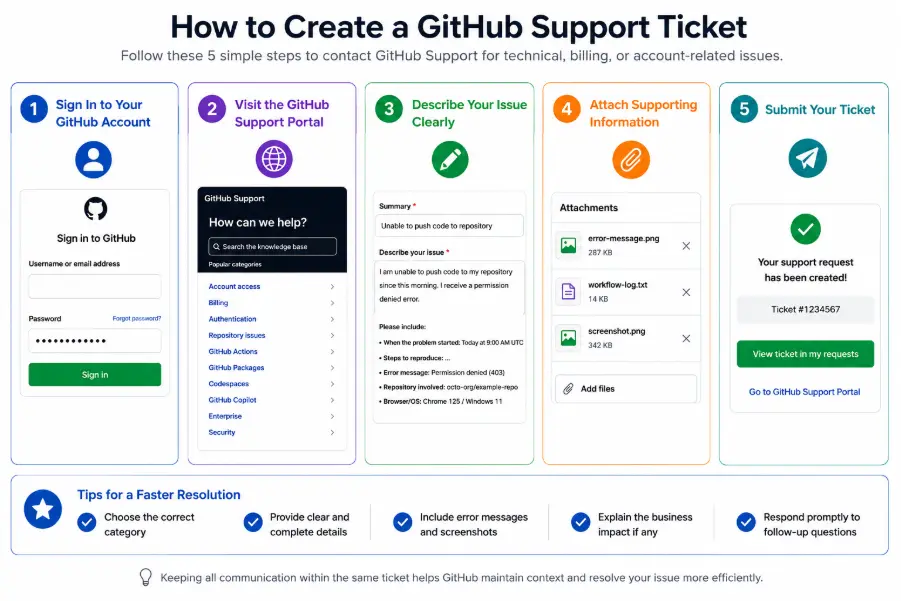
Step 1: Sign In to Your GitHub Account
Begin by signing in to your GitHub account using your web browser. Most support requests require authentication to verify account ownership and provide personalized assistance.
Step 2: Visit the GitHub Support Portal
Navigate to the official GitHub Support portal and select the option to create a new support request. The portal will guide you through choosing the appropriate category based on your issue.
Common categories include Account access, Billing, Authentication, Repository issues, GitHub Actions, GitHub Packages, Codespaces, GitHub Copilot, Enterprise, Security
Selecting the correct category helps route your request to the appropriate support specialists.
Step 3: Describe Your Issue Clearly
Provide a detailed description of the problem; a good support request should include:
- A clear summary of the issue
- When the problem started
- Steps to reproduce the issue
- Error messages (if any)
- Repository or organization involved
- Browser or operating system details (if relevant)
Step 4: Attach Supporting Information
If applicable, include:
- Screenshots
- Error logs
- Diagnostic information
- Screenshots of error messages
- Relevant URLs
Supporting evidence often helps reduce back-and-forth communication and speeds up issue resolution.
Step 5: Submit Your Ticket
After reviewing your request, submit the support ticket. You’ll receive confirmation that your request has been created. You can return to the Support portal at any time to:
- View ticket status
- Respond to GitHub Support
- Upload additional files
- Check for updates
- Review previous support conversations
Keeping all communication within the same ticket helps GitHub maintain context and resolve your issue more efficiently.
Understanding GitHub Support Ticket Priorities
GitHub prioritizes support tickets based on issue severity and impact. Accurately describing the issue and its business implications is crucial for determining the ticket’s priority for investigation.
GitHub Ticket Priority Overview
| Priority | Typical Impact | Example |
|---|---|---|
| Critical | Severe business impact or major service disruption. | Production system unavailable with no available workaround. |
| High | Significant functionality affected for multiple users. | A major GitHub feature is unavailable or malfunctioning. |
| Normal | Standard operational or technical issues. | Repository permissions, workflow failures, or troubleshooting assistance. |
| Low | General questions or minor issues with minimal impact. | Product guidance, documentation questions, or other non-urgent requests. |
Copilot-specific tickets are prioritized differently, as GitHub views Copilot as a productivity add-on rather than an essential platform. Consequently, even a complete outage is generally classified as Normal priority rather than Urgent, since developers can still commit and deploy code without it.
What Information Should You Include in a Support Ticket?
Submitting a well-documented ticket increases the chances of receiving an accurate response without unnecessary delays. Consider including the following information whenever applicable:
| Information to Include | Why It Helps |
|---|---|
| Account Username | Helps GitHub Support identify and verify your account. |
| Repository Name | Allows support to locate the affected repository or project quickly. |
| Organization Name | Useful when the issue involves an organization, team, or enterprise account. |
| Error Message | Helps identify the root cause and speeds up troubleshooting. |
| Screenshots | Provides visual context to better understand the issue. |
| Steps to Reproduce | Allows GitHub Support to recreate the issue and investigate it more effectively. |
| Time the Issue Occurred | Assists support engineers with server log analysis and incident investigation. |
| Browser or Operating System | Helps diagnose environment-specific compatibility or configuration issues. |
Providing accurate and complete information allows GitHub Support to investigate your request more efficiently and may reduce the need for follow-up questions.
GitHub Support Methods Comparison
Choosing the right support option can save time and ensure your request reaches the appropriate team.
| Support Option | Best For | Requires Sign-in |
|---|---|---|
| GitHub Support Portal | Technical issues, billing inquiries, account recovery, and security-related requests. | ✅ Yes |
| GitHub Support Ticket | Product troubleshooting, bug reports, and account-specific assistance. | ✅ Yes |
| GitHub Documentation | Learning GitHub features, tutorials, setup guides, and self-service troubleshooting. | ❌ No |
| GitHub Community Discussions | General questions, troubleshooting, feature discussions, and community support. | ⚪ Optional |
| Abuse Reporting | Reporting spam, phishing, harassment, abuse, or policy violations. | ⚠️ Depends on the report type |
| Enterprise Sales | Licensing, pricing, renewals, purchasing, and enterprise onboarding. | ❌ No |
| Copilot in GitHub Support | Getting AI-powered answers before submitting a support ticket. | ✅ Available within the GitHub Support experience |
A note on scam prevention: GitHub states that all genuine emails from its support team come only from a github.com or githubsupport.com address. If you receive a support email from anywhere else, treat it as suspicious and report it through GitHub’s abuse tools.
Frequently Asked Questions
Q1. Does GitHub have a customer service phone number?
Ans. No common phone number exists. Phone support is only available as a callback, and only to customers with a GitHub Premium Support plan, requested through a support ticket.
Q2. Can I email GitHub Support directly?
Ans. There’s no common email address available. All support interactions start on the Support portal, where you choose which of your email addresses GitHub should use to reach you.
Q3. Does GitHub Offer Live Chat Support?
Ans. No, GitHub does not offer public live chat support. Most technical, billing, and account-related issues are handled through the GitHub Support portal using support tickets.
Q4. I’m on GitHub Free, can I get any direct support at all?
Ans. Yes, but only for account, security, and abuse-related issues. Everything else routes through Community Discussions.
Q5. How do I know if it’s a GitHub-wide outage and not just my account?
Ans. Check githubstatus.com first; it’s updated live and covers Git, Actions, Packages, Pages, the API, and Copilot separately.
Q6. What language can I use to contact support?
Ans. English is supported for everyone. GitHub Enterprise customers also get Japanese-language support. Tickets can be auto translated for reading into Spanish, Japanese, Portuguese (Brazil), Simplified Chinese, French, or German, but replies should generally be written in English.
Q7. When Should You Use a Support Ticket Instead of Live Chat?
Ans. Use a GitHub support ticket for technical issues, account recovery, billing questions, repository access problems, GitHub Actions, Codespaces, Copilot, Enterprise support, and security-related concerns.
Q8. Will GitHub Support ever access my private repositories?
Ans. Only with your explicit, time-limited consent. If access is needed, the repository owner gets an email to approve or decline it, has 20 days to respond, and any approved access is capped at five days, fully logged in the audit log, and doesn’t change the repo’s visibility.
Q9. How Long Does GitHub Support Take?
Ans. GitHub Support response times vary depending on your subscription tier, the issue’s severity, and its assigned ticket priority. Free accounts have a long wait time for an initial response; paid plans receive replies within 24 to 48 hours. Premium Support customers can receive responses in 30 minutes for urgent issues.
Q10. Is GitHub Support Available 24/7?
Ans. Yes, GitHub Support is available 24/7, but the response time depends on your plan tier. Premium Support includes 24/7 ticket and callback support with SLAs; standard and free plans can submit support tickets anytime, but response times vary based on the plan and ticket priority.
Q11. How Do I Fix a GitHub 404 Error?
Ans. If your GitHub site shows a 404 error, check that your index.html file is in the correct publishing source, verify your GitHub Pages settings, ensure your DNS and custom domain are configured correctly (if used), clear your browser cache, and confirm there are no active GitHub service issues.
Source Link:
https://docs.github.com/en/support/learning-about-github-support/about-github-support
https://docs.github.com/en/support/contacting-github-support/creating-a-support-ticket
https://docs.github.com/en/communities/maintaining-your-safety-on-github/reporting-abuse-or-spam
https://support.github.com/request/landing
https://www.githubstatus.com/api/
https://github.com/enterprise/contact

manvinder Singh
https://www.hostingseekers.com
Manvinder Singh is the Founder and CEO of HostingSeekers, an award-winning go-to-directory for all things hosting. Our team conducts extensive research to filter the top solution providers, enabling visitors to effortlessly pick the one that perfectly suits their needs. We are one of the fastest growing web directories, with 500+ global companies currently listed on our platform.