DNS Server Not Responding: Causes and Quick Fixes
Domains Published on : June 9, 2026If you see something like “DNS server not responding,” it means that your device cannot connect to the Domain Name System server that is responsible for translating human-readable domain names (e.g., google.com) into IP addresses your browser needs to open a webpage. It can reflect on all devices if the DNS resolution fails; the reason can be any, such as a blocked connection, a DNS server failure, misconfiguration, etc.
But do not worry much, as most of the causes are easy to fix within minutes; we will discuss further in the blog below.
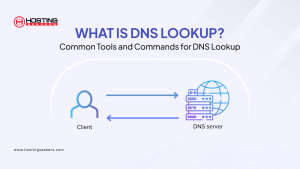
Example to understand: Imagine DNS is the internet’s phone book. You have a name (google.com), but to make a call, you need a number (an IP address, such as 142.250.80.46). If the phone book is not reachable, nothing loads. even if your internet connection is perfectly fine.
🌐 The DNS Process at a Glance
| What DNS Does | What Breaks Without It | What You See |
|---|---|---|
| 🔍 Translates domain names to IP addresses | The browser can’t locate the server | ❌ “DNS server not responding.” |
| ⚡ Caches recent lookups to speed up browsing | Every request fails or times out | 🚫 Pages won’t load at all |
| 🔄 Routes your query through a resolver chain | Resolution chain breaks at any point | ⚠️ Specific sites or all sites fail |
These are the 3 Root Failure Types.
All DNS problems have one of three causes:
- DNS server is down or unreachable: Your ISP’s DNS server, or the public DNS server you have set up, is offline or too busy to respond.
- The local connectivity with the DNS server is poor: If the DNS server is functioning properly, there may still be problems with the network adapter, local router, or device.
- The DNS record of the domain is wrong or not present: This problem is not with you, but with the domain’s server configuration.
🔍 Quick Diagnostic Tip
You can enter 8.8.8.8 into your browser. If a page loads (Google’s homepage) but google.com does not, the internet connection is on, but the DNS resolution is not working. One test will quickly distinguish if the issue is a DNS problem or an internet issue.
Common Causes of “DNS Server Not Responding” and Fixes
| # | Diagnostic Signal | Cause | Quick Fix |
|---|---|---|---|
| 1 | Error on all devices in the network | ISP DNS server failure | Switch to a public DNS (8.8.8.8 or 1.1.1.1) |
| 2 | Started after manually changing the DNS | Misconfigured DNS settings | Restore or repair DNS settings |
| 3 | Issue clears after ipconfig /flushdns | Corrupted DNS cache | Flush the DNS cache properly |
| 4 | Other devices on the same Wi-Fi also fail | Router or modem issue | Restart the router and the modem |
| 5 | Error persists after other fixes | Outdated network adapter driver | Update the driver via Device Manager |
| 6 | DNS settings changed unexpectedly | Malware or DNS hijacking | Run malware scan and reset DNS/router passwords |
| 7 | The issue disappears after disconnecting the VPN | VPN or proxy interference | Fix VPN DNS settings or reinstall VPN |
| 8 | The issue disappears when the firewall is disabled | Firewall or antivirus blocking DNS (Port 53) | Add a DNS exception or update the security software |
| 9 | Disabling IPv6 fixes the problem | IPv6 configuration conflict | Turn off IPv6 on the network adapter |
| 10 | The problem starts after a Windows update | Windows update-related networking bug | Uninstall the update or wait for a patch |
1. ISP DNS Server Outage
What Does It Mean?
Your DNS servers are set by your ISP. In the event of failure or if the DNS server is overloaded, all devices on the network lose their ability to resolve DNS names.
How to Confirm?
If the error occurs on any device (phone, laptop, tablet), with the same Wi-Fi connection.
Solution
Use a different DNS server (public). Open your network adapter settings or router panel and enter 8.8.8.8 / 8.8.4.4 (Google) or 1.1.1.1 / 1.0.0.1 (Cloudflare). No need to go through the ISP server.
2. Corrupted DNS Cache
What Does It Mean?
You cache DNS lookups locally to enhance web browsing performance. It can fail even if the DNS server is healthy due to a crash or conflicting records.
How to Confirm?
Use ipconfig /flushdns to clear the error.
Fix: Flush the DNS Cache
Windows
Run ipconfig /flushdns in an elevated Command Prompt
macOS
Open Terminal and run sudo dscacheutil -flushcache; sudo killall -HUP mDNSResponder
Google Chrome
chrome://net-internals/#dns → Clear host cache
3. Misconfigured DNS Settings
What Does It Mean?
If the wrong IP or a typing error is entered while manually setting the DNS, then all lookups fail. It is a common error that occurs after changing to a Public DNS Provider or VPN setting.
How to Confirm?
The error started right after you changed a DNS setting.
Fix: Verify or Reset DNS Settings
Open your network adapter’s IPv4 properties and check the DNS addresses are correct or go back to “Obtain DNS server address automatically” to reset default settings.
4. Router or Modem Issues
What Does It Mean?
Your Router is the first place you should look for DNS queries. This happens when DNS fails on the entire network due to a Buggy Firmware Update, corrupted Router Cache, or overheating.
How to Confirm?
All devices using the same Wi-Fi reflect the same error.
Fix: Restart Your Router and Modem
5. Firewall or Antivirus Blocking DNS
What Does It Mean?
Security software monitoring the DNS traffic on port 53 blocks legitimate DNS queries if the rule is too aggressive, it is often triggered by a software update or fresh install.
How to Confirm?
Disabling the firewall or antivirus temporarily resolved the issue.
Fix:
Re-enable your security software immediately after confirming. Next, look for a “DNS protection” or “DNS filtering” set for an exception for your DNS server address or update its software to its latest version.
6. Outdated Network Adapter Drivers (Windows)
What Does It Mean?
A corrupted or outdated network driver causes intermittent DNS failures that can’t be fixed with standard fixes, most of them shows after major Windows Updates that alter driver compatibility.
How to Confirm?
Press Windows + X to open the Device Manager, click Network adapters, right-click the adapter, select Update driver, and then Search automatically. You can also try downloading the latest driver from your manufacturer’s website manually and restarting.
Fix
Press Windows + X to open the Device Manager, click Network adapters, right-click the adapter, select Update driver, and then Search automatically. You can also try downloading the latest driver from your manufacturer’s website manually and restarting.
7. VPN or Proxy Interference
What Does It Mean?
If your internet connection is configured properly, you still may experience DNS issues if your VPN is misconfigured, and it routes DNS queries through a VPN tunnel that does not support DNS requests.
How to Confirm?
Once you disconnect from the VPN, there’s no more error!
Fix
Unplug VPN and test. If it works, then go to the settings of your VPN client, look for DNS leak protection or for custom DNS, and ensure it is set to a correct DNS server. If it continues, reinstall the VPN client or call the VPN provider’s support.
8. Malware or DNS Hijacking
What Does It Mean?
Malware secretly modifies the settings for DNS on your device or router so that traffic is rerouted to a fake server or blocked entirely.
How to Confirm?
DNS server addresses changed without you doing anything or getting directed to an unexpected page.
Fix
Perform a comprehensive scan using Windows Defender or a reputable program. Once scanned, check your DNS settings and router admin panel for any new server addresses. Change to a public DNS and new router administrator password.
Read our detailed blog to know more about DNS attacks and ways to prevent them.
9. IPv6 Conflicts
What Does It Mean?
Some ISPs and networks don’t fully support IPv6. If your device tries to perform a DNS resolution over IPv6 and this connection fails to be configured correctly, then the retrieval or lookup operation hangs or fails before attempting to resolve it over IPv4.
How to Confirm?
See if disabling IPv6 on your network adapter resolves the error or not.
Fix: Disable or Reconfigure IPv6
- For Windows: Run the command ncpa.cpl, then right-click your connection, next go to Properties and uncheck “Internet Protocol Version 6 (TCP/IPv6)” and click OK.
- For macOS: Go to System Settings, then Network – your connection – Details – open TCP/IP tab next Configure IPv6 to
10. Windows Update-Related DNS Issues
What Does It Mean?
This KB5066131 update has been associated with network issues in which network DLL files are interfered by the patch, which results to DNS client service being unable to run.
How to Confirm?
The DNS error appeared right after installing a Windows Update.
Fix
Access Settings – Windows Update – Update history – Uninstall updates and delete KB5066131 from the list of updates. Or wait for Microsoft to release a patched version.
Common DNS Error Codes and What They Mean
| Error Code / Message | What It Means | Most Likely Fix |
|---|---|---|
| DNS_PROBE_FINISHED_NXDOMAIN | The domain does not exist, or DNS cannot locate it. | Flush the DNS cache and verify the website URL. |
| DNS_PROBE_FINISHED_BAD_CONFIG | DNS settings are incorrectly configured on your device or network. | Switch to a trusted public DNS server such as Google DNS or Cloudflare DNS. |
| DNS Server Not Responding | The DNS server cannot be reached or has timed out. | Restart the router and flush the DNS cache. |
| ERR_NAME_NOT_RESOLVED | DNS lookup failed, and the domain name could not be resolved. | Change your DNS server and verify network settings. |
| SERVFAIL | The authoritative DNS server encountered an internal failure. | Usually, an ISP or website-side issue; wait or contact the site owner. |
How to Prevent DNS Errors in the Future?
It is nice to figure out a DNS problem, but to prevent it from occurring again is better.
1. Use a trusted public DNS: The DNS servers your ISP provides are handy but can be slower and less reliable than dedicated public DNS servers. You can switch to Cloudflare (1.1.1.1) or Google (8.8.8.8) as it is free, reliable, and will be done in less than 2 minutes!
2. Don’t forget to regularly update your router’s firmware: Router manufacturers release firmware periodically that fixes bugs, security holes, and enhances DNS. Check your router admin panel on a regular basis to check if there are any updates to install.
3. Ensure network adapter drivers are up to date: Compatibility problems may lead to occasional DNS failures, which driver updates prevent, particularly in Windows systems. After major Windows updates, check Device Manager or the manufacturer’s website.
4. Regular malware scans are a must: Set a weekly scan for your security software to help detect DNS hijacking malware before it changes your settings.
5. For businesses: Use DNS monitoring tools. Tools like UptimeRobot or dedicated DNS monitoring services alert you the moment DNS resolution fails for your domain, letting you respond before customers are affected.
Whether It’s a You Problem or a Them Problem?
This is one of the most frequent questions that people ask when they encounter this error, and it will lead the path of how you will resolve the issue. So, read below to know exactly how to answer it:
- If the error appears only on one device and vanishes after a router restart or occurs after you alter a setting, then it’s probably a “you” issue.
- You can say it’s an “them” issue when all devices on your network are affected, your ISP is experiencing a known issue, or the test with 8.8.8.8 also fails.
- If only one site is not working, but all others are, then this may be a problem with the website.
Conclusion
Most “DNS server not responding” errors can be addressed in three steps: Diagnosing the problem, fixing the problem, and preventing it from happening again. Check for connections and then restart the router or clear the cache. If issues still occur, you can try changing DNS servers or updating drivers. If you view DNS as a translation service, you will be able to identify that there can be a problem with your device, router, or ISP. Follow the fix steps properly you will easily get rid of the DNS server-related issue.
Frequently Asked Questions
Q1. Does “DNS server not responding” mean my internet is down?
Ans. It can or cannot be the case, as it can also happen due to your device failing to connect with the DNS server. You can clarify this by running an 8.8.8.8 browser test, and if the browser can load the page means your internet is perfectly fine, and the problem lies with DNS.
Q2. Best DNS server I can use in 2026?
Ans. Each DNS server have their pros and cons, just like the public DNS servers 1.1.1.1 of Cloudflare and 8.8.8.8 of Google has the high reliability and speed.
Q3. What to do when “DNS server not responding” reflect on windows 11?
Ans. Start with cleaning your DNS cache, use the command: ipconfig /flushdns, next, use a public DNS server. If the error persists, then try to disable IPv6, upgrade all network device drivers to the latest version, and restart the DNS Client service via services.msc.
Q4. How to fix “DNS server not responding” on iPhone or Android?
Ans.
- On iPhone: Go to iOS Settings, then Wi-Fi, next click Info icon for your network – Configure DNS Manually – final step enter 1.1.1.1 and 1.0.0.1.
- On Android: Go to Settings, then Network & Internet – Private DNS nextdns. Google or 1.1.1.1 (Cloudflare) done.
- You can also try forcing a new connection by turning off and on airplane mode.
Q5. Will it fix the DNS server problem if I restart my router?
Ans. Yes, it can work in many cases, particularly if the problem is related to an outdated router DNS cache or a temporary DNS or ISP glitch.

manvinder Singh
https://www.hostingseekers.com
Manvinder Singh is the Founder and CEO of HostingSeekers, an award-winning go-to-directory for all things hosting. Our team conducts extensive research to filter the top solution providers, enabling visitors to effortlessly pick the one that perfectly suits their needs. We are one of the fastest growing web directories, with 500+ global companies currently listed on our platform.