What Is a Private AI Server?
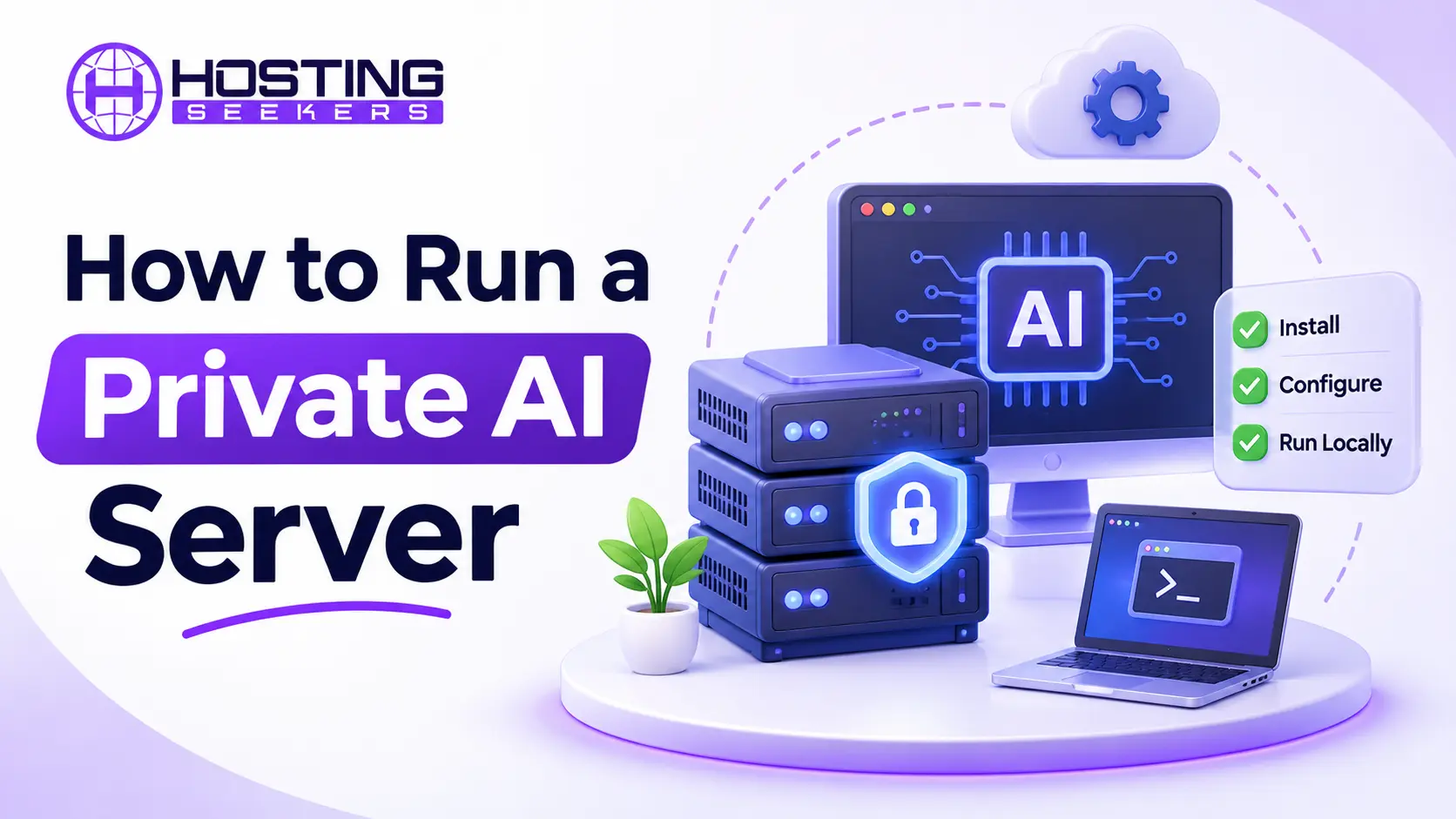
A private AI server is a dedicated computing environment used to run AI models and process requests within infrastructure controlled by an individual or organization. It typically uses one or more GPUs to handle the computational requirements of large language models (LLMs).
Unlike public AI services, where users access models through a provider’s infrastructure, a private AI server allows you to manage the model for runtime, hardware, applications, and data storage.
You can deploy one in three ways.
On-Premises Server: You purchase the hardware and install it in your office or data center. This provides physical control over the equipment but makes you responsible for electricity, cooling, maintenance, and hardware failures.
Dedicated GPU Server: You rent a physical GPU server from a hosting provider. The provider manages the data center infrastructure, while you control the operating system, installed models, and applications. This is a practical option for businesses that need dedicated computing resources without purchasing hardware.
Private Cloud or Isolated Instance: You deploy AI workloads in an isolated virtual environment. This can reduce infrastructure costs, but logical isolation is different from physical hardware ownership. Check the provider’s tenancy, access, and data-handling policies before using it for sensitive workloads.
It is important to understand that a private AI server does not automatically guarantee complete privacy. Model inference may remain local, but software updates, model downloads, external integrations and connected services can still communicate with outside systems. Your security depends on how the entire environment is configured.
Why Run Your Own Private AI Server?
Businesses choose private AI hosting for several reasons, particularly when they need more control over sensitive information and AI workloads.
Data Control and Privacy
A locally hosted model can process prompts and generate responses without sending them to a third-party inference of API. This gives organizations greater control over data storage, access permissions, and retention policies.
It is particularly useful for legal teams, financial organizations, healthcare businesses, and developers working with confidential information. However, compliance with regulations such as GDPR or HIPAA still depends on the complete deployment, including access controls, storage, backups, and operational procedures.
Predictable Infrastructure Costs
Public AI APIs generally charge according to token consumption or subscription plans. Costs can increase as more employees, applications, and automated workflows use the models.
With a private AI server, you pay for the hardware or server rental, electricity and maintenance. This can make costs more predictable when usage is consistent and sufficiently high. For occasional workloads, however, a cloud API may remain cheaper because you avoid paying for idle hardware.
Customization and Model Control
You can select an AI model based on your requirements, adjust its configuration, and integrate it with internal applications. You can also experiment with quantization, retrieval-augmented generation (RAG) and fine-tuning where supported.
Consistent Resource Availability
Dedicated GPU hardware provides more predictable access to computing resources than a shared environment. This is useful for applications that need consistent inference capacity or handle several requests simultaneously.
The trade-off is that you become responsible for software updates, monitoring, troubleshooting, and security. Public frontier models may also outperform locally hosted alternatives on particularly demanding reasoning tasks.
How to Run a Private AI Server
Setting up a private AI server involves choosing the infrastructure, preparing the hardware, installing an AI runtime, downloading a model, and configuring a secure interface.
Follow these steps to get started.
Step 1: Decide Where to Host Your AI Server
First, decide whether you want to purchase hardware or rent a dedicated GPU server.
Buying a server makes sense when your AI workloads run regularly; you need physical custody of the hardware, or you already have suitable data center facilities. Renting is often more practical when you want to test different GPUs, avoid upfront hardware costs, or adjust capacity as demand changes.
For small teams and developers, a workstation with a suitable GPU can be enough for experimentation. Businesses expecting continuous usage should consider dedicated server infrastructure with appropriate cooling, reliable power, and backup arrangements.
Before choosing, evaluate:
- Expected number of users and simultaneous requests.
- Model sizes and workloads you plan to run.
- GPU memory requirements.
- Storage and network requirements.
- Monthly operating or rental costs.
- Data residency and access requirements.
Step 2: Choose the Right Hardware for Your AI Server
GPU memory, commonly called VRAM, is one of the most important hardware considerations when running an LLM.
The model weights need to fit in available memory, along with additional space for the context window, runtime operations, and concurrent requests. Quantization reduces the memory required by representing model weights with fewer bits, making larger models practical on relatively affordable hardware.
The following figures are approximate starting points for quantized models. Actual requirements vary by model architecture, quantization level, and context length.
| Model size | Approximate VRAM starting point | Suitable workloads |
|---|---|---|
| 7B–8B parameters | 6–8 GB | Basic chat, summarization and simple coding |
| 13B–14B parameters | 10–16 GB | Content generation, coding and document assistance |
| 30B–32B parameters | 20–24+ GB | More demanding reasoning and business workloads |
| 70B parameters | 40–48+ GB | Advanced reasoning and complex applications |
These are planning estimates, not guaranteed minimums. Larger context windows and multiple simultaneous users can require considerably more memory.
Other Hardware Requirements
GPU memory is not the only consideration. Your system should also have:
- RAM: Start with 32 GB for a moderate single-user setup. Consider 64 GB or more for multiple models, larger workloads, and additional services.
- Storage: Use NVMe SSD storage to improve model downloads, loading times, and application responsiveness.
- CPU: Choose a multi-core processor for request handling, preprocessing, and other background operations.
- Cooling: Ensure sufficient airflow and thermal management, particularly when running GPUs continuously.
- Network: Use a reliable network connection with sufficient bandwidth for users and connected applications.
Apple Silicon systems are another option for local AI because their unified memory can accommodate models that would otherwise require dedicated GPU memory. CPU-only deployment is also possible, although inference is generally slower.
Step 3: Choose Your AI Software Stack
Once the hardware is ready, select the software that will manage your AI models and provide an interface for users. A beginner-friendly setup combines Ubuntu 24.04 LTS, Ollama, and Open WebUI.
Ubuntu 24.04 LTS: Provides a Linux environment for managing the server, installing drivers, and running AI applications.
Ollama: Handles model downloads, model execution, and API access. It simplifies the process of running open-weight models without manually configuring the entire inference stack.
Open WebUI: Provides a browser-based interface where users can interact with models, manage conversations, and switch between available models.
You can also consider other tools as your requirements grow:
- llama.cpp: Suitable for running quantized models with greater control over memory usage and inference configuration.
- vLLM: Designed for efficient GPU-based inference and serving multiple concurrent requests.
- SGLang: Useful for more advanced serving workloads and model orchestration.
For a first deployment, Ollama and Open WebUI provide a simpler starting point. You can move to more specialized inference frameworks as your workload grows.
Step 4: Install Ubuntu, GPU Drivers, and Ollama
Start with a clean Ubuntu 24.04 LTS installation. Connect to the server through SSH or its local terminal and update the operating system.
sudo apt update && sudo apt upgrade -yFor NVIDIA GPUs, install the driver management utility and recommended driver.
sudo apt install ubuntu-drivers-common -y
sudo ubuntu-drivers autoinstall
sudo reboot
After restarting, check whether the system recognizes your GPU.
nvidia-smiThe command displays the GPU model, available memory, driver version, and current utilization. If your GPU appears correctly, continue with the Ollama installation.
Install Ollama using its official Linux installation script:
curl -fsSL https://ollama.com/install.sh | shOnce the installation finishes, check that the service is running.
systemctl status ollamaOllama provides the runtime needed to download and execute supported models. Its API listens to localhost by default, which is a useful starting point for private deployment.
Step 5: Download and Test an AI Model
With Ollama installed, you can download and run an AI model directly from the terminal. For example, to run Gemma 4:
ollama run gemma4Ollama downloads the model and starts an interactive session. You can enter a prompt and check whether the model generates responses correctly.
Other options include:
- Qwen: Worth evaluating for multilingual tasks, coding, and general-purpose assistance.
- Mistral: Offers different model sizes and configurations for local inference.
- DeepSeek: Includes reasoning-oriented and coding-focused model options.
- Gemma: Provides models of different sizes for local deployment.
- OpenAI gpt-oss: Offers open-weight reasoning models in 20B and 120B sizes.
For example, you can run the 20B version of gpt-oss using:
ollama run gpt-oss:20bThe Ollama library lists this model at approximately 14 GB, while the 120B version is approximately 65 GB. These are download sizes, not the complete hardware requirements. The larger model needs additional memory for inference and other operations.
Before selecting a model, check its license, supported hardware, quantization options, context length, and intended use. Do not assume that every release from the same model family has identical commercial usage terms.
Step 6: Install and Configure Open WebUI
Running models through a terminal is useful for testing, but most teams prefer a browser-based interface. Open WebUI provides a self-hosted chat interface that can connect to Ollama. It supports user accounts, chat history, and model selection.
First, install Docker Engine if it is not already available on your Ubuntu server.
Generate a persistent secret key:
openssl rand -hex 32Keep the generated value secure. You will use it when launching Open WebUI.
Run the following command:
docker run -d \
  -p 127.0.0.1:3000:8080 \
  --add-host=host.docker.internal:host-gateway \
  -v open-webui:/app/backend/data \
  -e WEBUI_SECRET_KEY=your-generated-secret-key \
  --name open-webui \
  --restart always \
  ghcr.io/open-webui/open-webui:main
Replace
your-generated-secret-keywith the key you generated.
This configuration keeps the web interface bound to localhost instead of exposing it directly to the public internet. The persistent Docker volume stores application data, including user accounts, chat history, and settings.
Open the following address from the server itself:
http://localhost:3000Create the first administrator account. You can then configure user access and connect Open WebUI to your Ollama installation.
For remote access, use a VPN, SSH tunnel, or properly secured reverse proxy rather than exposing the application without protection.
Step 7: Secure Your Private AI Server
A locally hosted AI model does not automatically make your application secure. You must protect the server, its API, user accounts, and store information.
Start with these measures:
Restrict Network Access
Keep Ollama’s API bound to localhost unless another trusted service requires access. If you need remote access, use a private network or VPN to configure appropriate firewall rules.
Enable Authentication
Use strong passwords and individual accounts for employees. Disable public registration after creating the necessary accounts and assign permissions according to each user’s responsibilities.
Use HTTPS Encryption
If users access Open WebUI remotely, configure a reverse proxy such as Nginx or Caddy with a valid TLS certificate. HTTPS protects information while it travels between the browser and server.
Protect API Keys and Credentials
Store API keys and other secrets securely. Avoid placing credentials in public repositories, application logs, or prompts. Rotate credentials when they are exposed or no longer needed.
Keep Software Updated
Install operating system security patches and update Ollama, Open WebUI, Docker, and GPU drivers. Review software changes before applying them to critical production systems.
Protect Stored Information
Encrypt sensitive data at rest where appropriate. Back up the Open WebUI data volume and other important application files. Restrict access to backup storage and periodically test restoration.
Manage AI-Specific Risks
Prompt injection, sensitive information disclosure, and unsafe tool execution can affect locally hosted AI applications.
Restrict access to external tools, validate AI-generated outputs before using them in sensitive systems, and avoid giving AI agents unrestricted access to business applications.
For organizations handling regulated information, document data flows, access permissions, retention periods, and the physical or cloud location of the infrastructure. Private deployment alone does not establish regulatory compliance.
Step 8: Monitor Performance and Optimize Your AI Server
After installation, monitor how the server performs under actual workloads.
Use the following command to check NVIDIA GPU utilization and memory consumption:
nvidia-smiYou can also monitor running Ollama models with:
ollama psPay attention to the following performance indicators:
- GPU utilization: Shows how much of the GPU’s processing capacity is being used.
- VRAM consumption: Helps identify whether the model or context window is using too much memory.
- Tokens per second: Indicates how quickly the model generates responses.
- Response latency: Measures how long users wait for an answer.
- Concurrent requests: Helps identify whether the server can handle multiple users comfortably.
If the model runs slowly or fails to load, consider using a smaller model, choosing a more efficient quantization level, or reducing the context window.
You can also evaluate a different inference runtime if your existing software cannot handle the required request volume efficiently.
For production environments, add centralized logging, uptime monitoring, and alerts for hardware or application failures.
Step 9: Scale Your Private AI Infrastructure
Once your private AI server starts handling regular workloads, you may need additional computing capacity.
There are two common approaches.
Vertical Scaling
You can upgrade the existing machine with a more powerful GPU, additional memory, or improved storage. This is relatively straightforward when the workload can still be handled by one server.
Horizontal Scaling
You can distribute inference requests across multiple servers or GPUs. This approach is useful when more users, applications, or workloads need to access AI models simultaneously.
Larger deployments may also introduce container orchestration, load balancing, and automated deployment tools such as Kubernetes and Argo CD.
However, these technologies are not necessary for every setup. Start with a single server, measure actual demand, and expand only when performance or availability requirements justify the additional complexity.
Common Problems When Running a Private AI Server
Even with the right hardware and software, you may encounter issues during installation or daily operation.
AI Model Fails to Load
This commonly happens when the model requires more memory than the server can provide. Check available VRAM, model size, and context settings. Try a smaller or more heavily quantized model if necessary.
Ollama Cannot Detect the GPU
Check the NVIDIA driver installation using nvidia-smi. If the command fails or does not list the GPU, review the driver and hardware configuration before troubleshooting Ollama.
Open WebUI Cannot Connect to Ollama
Check whether the Ollama service is running and whether the Docker container can reach the host service. Review the container’s network configuration and logs.
AI Responses Are Too Slow
Check GPU utilization, VRAM consumption, CPU usage, and the model’s context length. A smaller model or a more suitable inference to runtime may improve response times.
Users Cannot Access the Interface
Check out the firewall, VPN, reverse proxy, port configuration, and authentication settings. If the interface is intentionally bound to localhost, remote access requires a secure connection method.
Final Thoughts
Running a private AI server gives developers and businesses greater control over AI infrastructure, model selection, and data handling. With a suitable GPU, Ubuntu, Ollama, and Open WebUI, you can build a working local AI environment without depending on a public inference API for every request.
Start by identifying your workload and estimating GPU memory requirements. Choose between purchasing hardware and renting a dedicated GPU server, install the required software, test a suitable model and secure access before allowing other users to connect.
For production deployments, continue monitoring performance, maintaining backups, and reviewing security settings. A well-configured private AI server can support internal assistants, coding tools, document processing, and other business workloads while keeping inference under your control.
Frequently Asked Questions
1. What is a private AI server?
A private AI server is a dedicated computing environment that runs AI models for an individual or organization. It can use owned hardware or a rented dedicated GPU server, allowing users to control model execution, data storage and access.
2. Can I run a private AI server without a GPU?
Yes. Smaller quantized models can run on a modern CPU with a sufficient system of RAM. However, inference is generally slower than GPU-based execution, particularly for larger models and multiple simultaneous users.
3. How much VRAM do I need for a private AI server?
A quantized 7B–8B model may start with approximately 6–8 GB of VRAM, while 13B–14B models may need 10–16 GB. Larger models require considerably more memory, depending on quantization, context length, and concurrent usage.
4. Can multiple users access one private AI server?
Yes. You can configure an application such as Open WebUI to provide individual accounts and shared access to the AI infrastructure. However, the server needs sufficient GPU memory and processing capacity to handle concurrent requests.
5. Can I run AI models without an internet connection?
Yes. Once you have downloaded the model and installed the required software, local inference can work without an internet connection. You must still manage software updates, security patches, and other external dependencies separately.
6. Is a rented dedicated GPU server private?
A dedicated GPU server provides hardware isolation from other tenants, but it does not mean you have physical custody of the machine. Review the hosting provider’s access, data handling, network isolation, and physical security policies.
7. Is a private AI server suitable for business use?
Yes. Businesses can use private AI servers for internal chatbots, coding assistance, document processing, and other workloads. Production use requires proper authentication, monitoring, backups, access controls, and a review of the model’s commercial license.